
Top Free Screen Recording Tools in 2026
In 2026, YouTube Shorts have emerged as one of the most effective ways to engage audiences quickly. These 60-second vertical videos are not only fun but also highly educational, making them ideal for content creators, educators, gamers, and entrepreneurs. To create professional-quality Shorts, mastering a reliable vertical video screen recorder is essential. Whether you’re recording tutorials, demonstrating apps, capturing gameplay, or sharing quick tips, using the right screen recording software free of charge can make all the difference.
Many free screen recording tools on the market, however, come with limitations like watermarks, time restrictions, or laggy performance. Fortunately, there are several free screen recorders without watermark that provide professional-quality features without costing a dime. In this guide, we’ll cover the top free screen recording tools in 2026, how to use them effectively, their advantages and drawbacks, bonus tips for creating engaging content, real-life examples, common mistakes to avoid, and frequently asked questions.

Why Use a Screen Recorder for YouTube Shorts?
Using the right free screen recording tools is essential for creating impactful YouTube Shorts. A reliable vertical video screen recorder lets you:
Produce tutorials and educational videos in a short, concise format.
Showcase product demos or app walkthroughs effectively.
Record responses, explanations, or voiceovers with clarity.
Capture highlights from games, software, or other digital tools.
Even though Shorts are under 60 seconds, they can leave a strong impression. Choosing the right screen recording software free of charge, especially a free screen recorder without watermark, ensures your videos look professional and polished, even if you’re just getting started.

Top Free Screen Recording Tools in 2026
Creating YouTube Shorts in 2026 requires reliable free screen recording tools that allow you to produce professional-looking content. Below is a detailed overview of the best screen recording software free of charge, perfect for Shorts, including platforms, key features, pros, cons, and tips for using them effectively.
| Tool | Platform | Key Features | Pros | Cons |
|---|---|---|---|---|
| OBS Studio | Windows, macOS, Linux | Unlimited recording & streaming, high-quality video, advanced audio mixing, customizable layouts & scenes | Free and open-source, no watermark, professional-grade features | Steep learning curve for beginners |
| ShareX | Windows | Screen recording, scrolling capture, GIF creation, custom hotkeys | Lightweight, fast, ideal for advanced users | Not available for macOS/Linux |
| ScreenRec | Windows, macOS, Linux | Instant sharing via private link, cloud backup, lightweight | No watermark, free cloud storage, beginner-friendly | 5-minute free recording limit (can be split for Shorts) |
| Loom | Browser/Desktop | Record screen + camera, instant shareable links, annotation tools | Extremely beginner-friendly, great for tutorials | Free version limited to 5-minute videos, advanced editing paid |
| VLC Media Player | Windows, macOS, Linux | Hidden screen recorder, no watermark | Lightweight, free, widely available | Limited recording control |
| RecordCast | Browser | No installation, cloud-based, easy to use | Quick setup, free download | Browser-dependent, limited advanced features |
| Screencast-O-Matic | Browser/Desktop | Quick recording, simple editing tools | User-friendly, fast setup | Free version limited to 15 minutes, watermark |
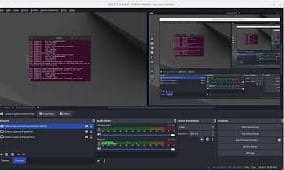
1. OBS Studio (Windows, macOS, Linux)
Website: obsproject.com
Features:
Unlimited recording and streaming.
High-quality video and audio output.
Advanced audio mixing and scene composition.
Custom layouts for vertical or horizontal videos.
Pros:
Completely free and open-source.
No watermarks.
Professional-grade features suitable for advanced editing.
Cons:
Steep learning curve for beginners.
How to Use as a Vertical Video Screen Recorder for YouTube Shorts:
Set your video resolution to 1080×1920 to record vertical videos.
Add your screen, app, or game as a recording source.
Click Start Recording to capture your footage.
Use a free video editor to trim the video to under 60 seconds.
Real-Life Example: Many gaming YouTubers use OBS Studio as their vertical video screen recorder to capture gameplay and webcam reactions together. The combination of game audio, mic input, and custom scenes creates professional Shorts without watermarks.
_____________________________________________________________________________
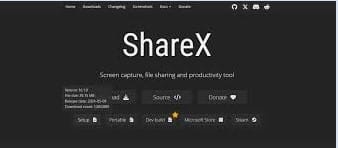
2. ShareX (Windows Only)
Website: getsharex.com
Features:
Capture screen, scrolling windows, and GIFs.
Customizable hotkeys for fast recording.
Completely free screen recorder without watermark.
Pros:
Fast, lightweight, and efficient.
Advanced features suitable for power users.
Multiple export options for different formats.
Cons:
Only available for Windows; not compatible with macOS or Linux.
How to Use ShareX as a Vertical Video Screen Recorder for YouTube Shorts:
Install and open ShareX.
Set the recording area to vertical dimensions (1080×1920) for Shorts.
Start and stop recording using hotkeys for convenience.
Trim and format the video using any free editor to create engaging YouTube Shorts.
Real-Life Example: Many educators and content creators use ShareX as a screen recording software free of watermarks to produce short, focused tutorial clips and app demonstrations, perfect for vertical video formats on YouTube Shorts.
______________________________________________________________________________
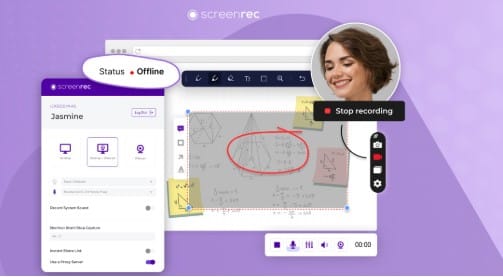
3. ScreenRec (Windows, macOS, Linux)
Website: screenrec.com
Features:
Instant sharing via private links.
Free cloud backup for recordings.
Lightweight and easy-to-use recorder.
Fully free screen recorder without watermark.
Pros:
No watermarks on recordings.
Beginner-friendly interface.
Free cloud storage for quick sharing.
Cons:
Free version has a 5-minute recording limit (can be managed by splitting videos for Shorts).
How to Use ScreenRec as a Vertical Video Screen Recorder for YouTube Shorts:
Record your tutorial, app demo, or highlight segment.
Keep the video under 60 seconds to fit YouTube Shorts format.
Save locally or upload directly using the free cloud sharing feature.
Real-Life Example: Freelancers and content creators often use ScreenRec as a screen recording software free of watermarks to record product demos, then repurpose these clips as vertical Shorts for YouTube, making content creation fast and professional.
____________________________________________________________________________
4. Loom (Browser/Desktop)
Website: loom.com
Features:
Record your screen and webcam simultaneously.
Generate instant shareable links.
Basic annotation and drawing tools.
Functions as a free screen recorder without watermark for short recordings.
Pros:
Extremely beginner-friendly interface.
Perfect for educational tutorials or concise demonstrations.
Works directly in the browser or via desktop app.
Cons:
Free version limited to 5-minute recordings.
Advanced editing features require a paid subscription.
How to Use Loom as a Vertical Video Screen Recorder for YouTube Shorts:
Record your screen and/or webcam using Loom.
Trim the video to under 60 seconds for Shorts.
Download the clip or share directly via Loom’s link.
Upload the vertical video to YouTube Shorts for quick content creation.
Real-Life Example: Teachers and educators often use Loom as a screen recording software free of watermarks to create vertical Shorts that explain math problems, app tutorials, or lesson highlights efficiently.
______________________________________________________________________________
5. VLC Media Player (Hidden Recorder)
Website: videolan.org
Features:
Record your desktop screen using a hidden feature.
Completely free screen recorder without watermark.
Lightweight and fast, no installation of extra software needed.
Pros:
Free and widely available across Windows, macOS, and Linux.
Quick and simple for basic screen recording.
Cons:
Limited recording controls compared to dedicated screen recording software.
Not ideal for advanced editing or professional tutorials.
How to Use VLC as a Vertical Video Screen Recorder for YouTube Shorts:
Open VLC and go to Media > Convert/Save.
Select Capture Device as your source.
Set the desired format and save your recording.
Use a free editor to trim and adjust the video to vertical format for Shorts (1080×1920).
Real-Life Example: Students and educators often use VLC as a screen recording software free of watermarks to quickly capture lectures, presentations, or tutorials for repurposing into vertical YouTube Shorts.
Bonus Tips for Creating Engaging YouTube Shorts
Using the right free screen recording tools and a vertical video screen recorder can make a huge difference, but following these tips will take your Shorts to the next level:
Resolution: Always record in vertical format (1080×1920) to match YouTube Shorts specifications.
Length: Keep your videos under 60 seconds for maximum engagement.
Audio: Use clear microphone input or add voiceovers to enhance clarity.
Content Focus: Stick to one main idea per video to keep viewers engaged.
Hook: Capture attention within the first 3 seconds to encourage viewers to watch till the end.
Lighting: Ensure proper lighting when recording webcam reactions for professional-looking videos.
Editing: Use screen recording software free of watermarks to trim unnecessary sections and keep your content concise and snappy.
Following these guidelines with the right free screen recorder without watermark ensures your Shorts are polished, professional, and viewer-friendly.
Common Mistakes to Avoid When Creating YouTube Shorts
Even when using the best free screen recording tools or a vertical video screen recorder, beginners often make mistakes that can hurt engagement. Avoid these pitfalls:
Using copyrighted audio or clips: Always use royalty-free music or sound effects to prevent copyright strikes.
Overloading Shorts with multiple ideas: Focus on one main idea per video for clarity.
Poor audio or video quality: Make sure your screen recording software free of watermarks produces clear video and sound.
Ignoring vertical formatting: Always record in 1080×1920 vertical format to fit YouTube Shorts properly.
Excessive or irrelevant hashtags: Only use relevant hashtags to improve reach without appearing spammy.
Copying other creators’ content without adding value: Originality is key; add your unique twist to stand out.
By avoiding these mistakes and using a free screen recorder without watermark, you ensure your Shorts look professional and retain viewer attention.
Real-Life Examples of Using Free Screen Recording Tools
Using the right free screen recording tools can make content creation easier and more professional. Here’s how different creators use them effectively:
Gamers: Use OBS Studio, a powerful vertical video screen recorder, to capture gameplay highlights, add reactions, and create engaging YouTube Shorts without watermarks.
Educators: Use Loom or ScreenRec, both screen recording software free of watermarks, to produce short tutorial videos and lesson highlights for students.
Entrepreneurs: Use ShareX as a free screen recorder without watermark to record product demos, app walkthroughs, or software tutorials for marketing purposes.
Freelancers: Record client tutorials, presentations, or software demos using screen recording software free to repurpose content for social media in vertical Shorts format.
These examples show how using the right free screen recording tools and a vertical video screen recorder can save time while producing professional-quality content.
FAQs About Free Screen Recording Tools
Q1: Can I record YouTube Shorts for free without a watermark?
Yes! Tools like OBS Studio, ShareX, ScreenRec, Loom, and VLC are excellent free screen recording tools that let you create vertical videos without any watermarks.
Q2: Which tool is easiest for beginners?
For newcomers, Loom and ScreenRec are the most user-friendly screen recording software free of watermarks, making it easy to create vertical video content quickly.
Q3: Can I record mobile screens for YouTube Shorts?
Absolutely. Some free screen recording tools like OBS Studio and ShareX support mobile screen mirroring or capture, allowing you to produce professional vertical videos.
Q4: Are there time limits in free versions?
Yes, the free versions of ScreenRec and Loom have a 5-minute recording limit. However, you can create multiple clips and trim them to produce engaging YouTube Shorts.
Q5: Which tool is best for professional editing?
If you need advanced features, OBS Studio is a powerful vertical video screen recorder and screen recording software free of watermarks, ideal for high-quality production.
Conclusion
Creating YouTube Shorts in 2026 no longer requires expensive or complicated software. Thanks to the availability of free screen recording tools and screen recording software free of watermarks, content creators from all backgrounds—whether gamers, educators, entrepreneurs, or freelancers—can produce professional-quality videos quickly and efficiently. With the rise of vertical video formats, choosing the right vertical video screen recorder is crucial to ensure your Shorts meet YouTube’s specifications and captivate your audience.
Among the best options available, OBS Studio stands out for creators who want complete control over their recordings. As a fully screen recording software free of watermarks, OBS Studio offers unlimited recording, high-quality video, advanced audio mixing, and customizable layouts for vertical videos. While it may have a learning curve for beginners, its professional-grade features make it ideal for gaming highlights, software tutorials, and multi-layered content that requires precise editing and scene composition. For creators looking to combine gameplay or app demonstrations with webcam reactions, OBS Studio is an excellent choice as a vertical video screen recorder.
On the other hand, tools like Loom and ScreenRec provide simplicity and speed. These free screen recording tools are perfect for beginners or educators who want to quickly capture tutorials, lessons, or short explainer videos without dealing with complex setups. Both tools function as a free screen recorder without watermark, enabling you to produce vertical videos ready for YouTube Shorts in just a few minutes. Loom’s browser-based interface allows easy recording of both screen and webcam simultaneously, while ScreenRec offers cloud storage and instant sharing, making it easy to manage multiple video clips.
For Windows users, ShareX is a lightweight, fast, and versatile screen recording software free of watermarks, offering advanced features like scrolling capture and GIF creation. While it’s more suitable for power users, its flexibility makes it a great vertical video screen recorder for content that requires multiple export formats or detailed screen interactions. Similarly, VLC Media Player offers a hidden recording feature that is completely free and widely available. Though limited in controls and not ideal for advanced editing, VLC remains a handy option for quick captures and simple vertical video content, making it a reliable free screen recorder without watermark for students and educators alike.
Browser-based solutions such as RecordCast and Screencast-O-Matic further expand the options for creators who prefer no installation or cloud-based workflows. Both serve as screen recording software free of watermarks, enabling users to record vertical video content for YouTube Shorts efficiently. RecordCast’s intuitive interface allows instant recording and trimming, while Screencast-O-Matic provides a straightforward solution for editing clips under 60 seconds. These tools are especially useful for entrepreneurs and freelancers who need to create demos, presentations, or product walkthroughs without investing in heavy software.
Beyond selecting the right software, following best practices ensures your Shorts stand out. Always record in vertical format (1080×1920), focus on one idea per video, and use clear audio with optional voiceovers. A strong hook in the first few seconds, combined with proper lighting for webcam recordings, can drastically improve viewer engagement. Using screen recording software free of watermarks allows you to edit and trim your videos without worrying about branding overlays, giving your Shorts a clean and professional look. Avoid common mistakes like using copyrighted audio, overloading your content with multiple ideas, or ignoring vertical formatting, and you’ll see better audience retention and engagement.
The beauty of these free screen recording tools is that they democratize content creation. Whether you are an aspiring YouTuber, a teacher producing educational clips, a gamer capturing highlights, or an entrepreneur showcasing products, there’s a vertical video screen recorder that fits your workflow and skill level. By experimenting with different tools, finding the one that matches your style, and staying consistent with your uploads, you can grow your channel steadily and professionally.
In conclusion, the combination of accessible free screen recording tools, screen recording software free of watermarks, and the right vertical video strategy makes creating YouTube Shorts easier than ever. From advanced options like OBS Studio to beginner-friendly solutions like Loom and ScreenRec, you have the power to produce professional, engaging content without spending a single dollar. Choose the right tool, plan your content thoughtfully, record in vertical format, and maintain consistency. With these strategies, your YouTube Shorts channel can grow faster than you imagine—one clean, polished Short at a time.